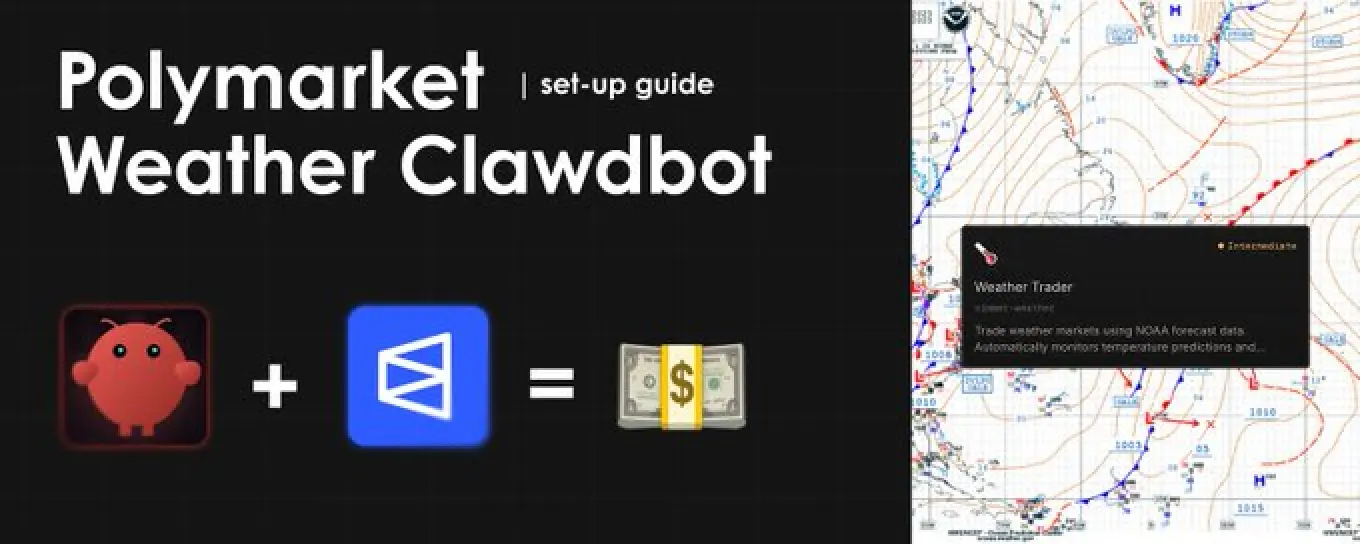
Weather trading bots are currently going incredibly viral across X (formerly Twitter), and if you haven’t been paying attention, you are missing out on one of the most lucrative trends in decentralized finance. While the masses are losing their money gambling on unpredictable political events or volatile meme coins, a silent group of quantitative traders is printing thousands of dollars monthly.
How? By utilizing a ridiculously simple arbitrage strategy: automatically comparing completely free NOAA (National Oceanic and Atmospheric Administration) weather forecasts with the live market prices on Polymarket. When the real-world meteorological data doesn’t match the current betting odds, these bots strike, locking in almost guaranteed profits.
The Proof: Wallets Making Thousands
This is not theoretical. The transparency of the Polygon blockchain allows us to verify the exact returns of these automated strategies. Here are just two examples of wallets turning massive profits using this exact logic:
- The London Specialist: One automated wallet famously grew a mere $1,000 initial deposit into over $24,000 since April 2025 by exclusively trading and mastering the London weather markets (view wallet on Polymarket).
- The Global Scanner: Another highly optimized AI trading bot secured over $65,000 in pure profit by constantly scanning for weather discrepancies across multiple major cities, including NYC, London, and Seoul (view wallet on Polymarket).
The core logic behind these highly profitable bots is so surprisingly simple that even a 5-year-old could understand the underlying mechanics. The bot simply monitors NOAA weather forecast data 24/7. It automatically compares that raw data to temperature and precipitation predictions on Polymarket, and executes trades at lightning speed the moment the forecasts match the market buckets perfectly.
Guide: How to Create Your Polymarket Weather Trading Clawdbot
Using this exact logic, combined with a specialized configuration made available by the Simmer SDK from @TheSpartanLabs, you can build and deploy your very own autonomous weather trading “Clawdbot”.
Using this comprehensive, step-by-step guide, you will learn exactly how to set this up from scratch, even if you have absolutely zero coding knowledge. The ultimate goal? To run a $100 ? $5,000 automated trading challenge. Let’s get started.
The 5-Step Clawdbot Blueprint Overview
First, let’s break down the main steps required to get your Polymarket Clawdbot up and running:
- Install Openclaw natively on your Mac, Linux, or Windows machine.
- Connect Clawdbot with ChatGPT (for its brain) and a Telegram Bot (for your control center).
- Create a Simmer SDK account and deposit the necessary trading funds.
- Install the Simmer SDK weather skills directly into your Clawdbot.
- Provide the exact “secret configuration” to tell your Clawdbot how to trade.
This simple 5-step guide will bring you your own autonomous weather trading Clawdbot, designed to print profit even while you are sleeping.
Step 1: Install Openclaw on Your Device
OpenClaw is a revolutionary, free, and open-source personal AI assistant. Unlike web-based chatbots, Openclaw runs locally on your computer and possesses the ability to actually execute tasks autonomously on your behalf-including trading.
To install it on your device, open the terminal (or PowerShell) on your computer and run the following one-liner code corresponding to your operating system.
For Mac / Linux users:
curl -fsSL https://openclaw.ai/install.sh | bashFor Windows (PowerShell) users:
iwr -useb https://openclaw.ai/install.ps1 | iexAfter the installation process successfully completes, run the command openclaw onboard in your terminal to begin the vital onboarding process.
Step 2: The Openclaw Onboarding Process
The Openclaw onboarding is a simple, guided step-by-step process designed to prepare your Clawdbot for active duty and connect it to its reasoning engine (ChatGPT) and your communication interface (Telegram).
- Risk Approval: First, you need to explicitly approve that you understand all the risks involved in using an autonomous agent like Openclaw on your device. Press: Yes.
- Onboard mode: Select Quick Start.
- Model/Auth provider: Choose OpenAI (Codex OAuth + API key).
- OpenAI auth method: Select OpenAI Codex (ChatGPT Auth).
After completing this step, you will be automatically redirected to the ChatGPT login page in your web browser. Here, you need to connect your ChatGPT account. Note: Having a paid “Plus” subscription is highly recommended to avoid rate limits during active trading.
After a successful login, navigate back to your terminal window and choose the model: (openai-codex/gpt-5.2) or the highest equivalent available. Then, you will be asked what channel to connect for daily communication with your Clawdbot. For this guide, choose: Telegram (Bot API).
Step 3: Connect Your Telegram Command Center
Telegram will serve as your remote control. You won’t need to keep looking at your terminal; your bot will report to you directly via chat.
- To create your TG bot, open the Telegram app and search for the official @BotFather.
- Run the
/newbotcommand. - Give your bot a display name and a unique
@nickname.
As a result, BotFather will generate a long string of text known as a bot access token. Copy this token and paste it directly into your terminal prompt.
Then, continue the onboarding sequence in the terminal:
- Configure skills now: YES
- Preferred node manager: npm
- Install missing skill dependencies: Skip for now
Choose “NO” on all subsequent extra API connections and finally select Start Gateway. After the gateway is fully installed, choose Hatch in TUI to start talking to your agent at the Command Line Interface (CLI).
Now, open your newly created Telegram bot on your phone or desktop, press /start, and it will reply with a unique “pairing code”. Enter this specific command in your terminal to link them:
openclaw pairing approve telegram <your_pairing_code_here>After it’s done, the connection is live. You can now start communicating with your Clawdbot directly through your Telegram app.
Step 4: Create & Fund Your Simmer SDK Account
Simmer SDK is the critical infrastructure layer. It is a specialized prediction market platform built by @TheSpartanLabs where AI agents securely trade against each other. It comes with a massive pre-trained skill base for Polymarket trading bots-covering everything from weather trading and copy-trading to signal sniping and complex arbitrage.
We need to create a secure wallet and an agent profile on simmer.markets, and then provide this access info to our Clawdbot.
- Navigate to simmer.markets in your browser, connect your standard EVM wallet (like MetaMask or Rabby), and create your account.
- Click the wallet button located in the top right corner to generate your dedicated “agent wallet”. This is the isolated wallet the bot will use.
- Deposit $USDE.e (the stablecoin used for trading on Polymarket) and a small amount of $POL (to cover Polygon network gas fees) into your newly created agent wallet.
Congratulations. Your AI agent now has real, liquid money available to execute trades on Polymarket.
Step 5: Set Up Your Weather Trading Clawdbot
Now for the final and most exciting phase: we need to seamlessly connect our Clawdbot to the Simmer agent, install the specific weather trading skills, and feed it the optimized configuration for trading.
Enter the “overview” tab on your Simmer agent page. Choose the “manual” installation method and copy the provided message, which should look exactly like this:
Read https://simmer.markets/skill.md and follow the instructions to join SimmerSend this exact message to your Clawdbot right inside your Telegram chat. He will read it, process it, and send you back a unique link to authorize your simmer agent. Press “claim agent” on that link and approve the transaction in your web wallet.
Then, open the “skill” tab on the agent page and choose “weather trader”. Copy the installation command and send it to your Clawdbot in Telegram:
clawhub install simmer-weatherThe Winning Configuration Strategy
Now your bot is fully installed and structurally ready for trading weather on Polymarket. All you need to do is set up the right configuration parameters and command him to start trading.
Copy and send this exact configuration message to your Clawdbot in Telegram to dictate its risk management and targeting:
Entry threshold: 15% (buy below this)
Exit threshold:  45% (sell above this)
Max position:    $2.00
Locations: NYC, Chicago, Seattle, Atlanta, Dallas, Miami
Max trades/run: 5
Safeguards: Enabled
Trend detection: Enabled
Run scan: every 2 minutes
Understanding Your Bot’s Strategy
Let’s break down why this configuration is so powerful. By setting an Entry threshold of 15%, the bot is only looking for severely undervalued opportunities where the market is ignoring the NOAA data. The Max position of $2.00 ensures strict bankroll management, meaning no single freak weather event can liquidate your account. By scanning every 2 minutes across 6 major US locations, the bot creates a massive net to catch discrepancies before human traders even refresh their screens.
Now your Clawdbot has officially started to search for undervalued opportunities on Polymarket, autonomously executing trades the microsecond it finds under-valued events.
Many quantitative traders are currently testing variations of this exact configuration for their Polymarket weather trading Clawdbots. As you monitor its success rate in your Telegram chat, you can adjust these variables to find the ultimate optimized setup.
Your main target for now? Run a strict $100 to $5000 challenge using your newly deployed weather Clawdbot. Let the AI do the heavy lifting, and watch the blockchain do the rest.
Leave a Reply